> ## Documentation Index
> Fetch the complete documentation index at: https://docs.beaconcha.in/llms.txt
> Use this file to discover all available pages before exploring further.
> Manage notifications in the v2 dashboard
# Notifications
# ⏰ Notifications v2
## Requirements
* beaconcha.in account
* Register [here](https://beaconcha.in/register)
* Login [here](https://beaconcha.in/login)
* Configure notifications [here](https://beaconcha.in/notifications)
.png?fit=max&auto=format&n=bISFwNjB_9Ym1Ov6&q=85&s=6a561b39f0586c4f4b808798150973ec) ## Overview
* **A**: Shows whether email notifications are enabled.
* **B**: Daily email limit. The limit resets at 00:00 UTC. Upgrading to a higher [premium](https://beaconcha.in/pricing) tier increases this limit.
* **C**: Indicates whether push notifications for the mobile app are enabled.
* **D**: Notification history. Notifications for dashboards, machines, clients, and network events will appear in dedicated tabs.
* **E**: Set up or manage your notifications in this section.
## Overview
* **A**: Shows whether email notifications are enabled.
* **B**: Daily email limit. The limit resets at 00:00 UTC. Upgrading to a higher [premium](https://beaconcha.in/pricing) tier increases this limit.
* **C**: Indicates whether push notifications for the mobile app are enabled.
* **D**: Notification history. Notifications for dashboards, machines, clients, and network events will appear in dedicated tabs.
* **E**: Set up or manage your notifications in this section.
.png?fit=max&auto=format&n=bISFwNjB_9Ym1Ov6&q=85&s=345a8bd5acd2095d307bef68bf131909) ## Setting up v2 notifications via web
### Validator notifications
V2 notifications are group-based, meaning you can set validator notifications for each [group](../validator-dashboard/validator-groups) configured on the [validator dashboard](https://beaconcha.in/dashboard).
To set up notifications:
1. Make sure you have created a [validator dashboard](https://beaconcha.in/dashboard) first.
2. Go to [https://beaconcha.in/notifications#dashboards](https://beaconcha.in/notifications#dashboards).
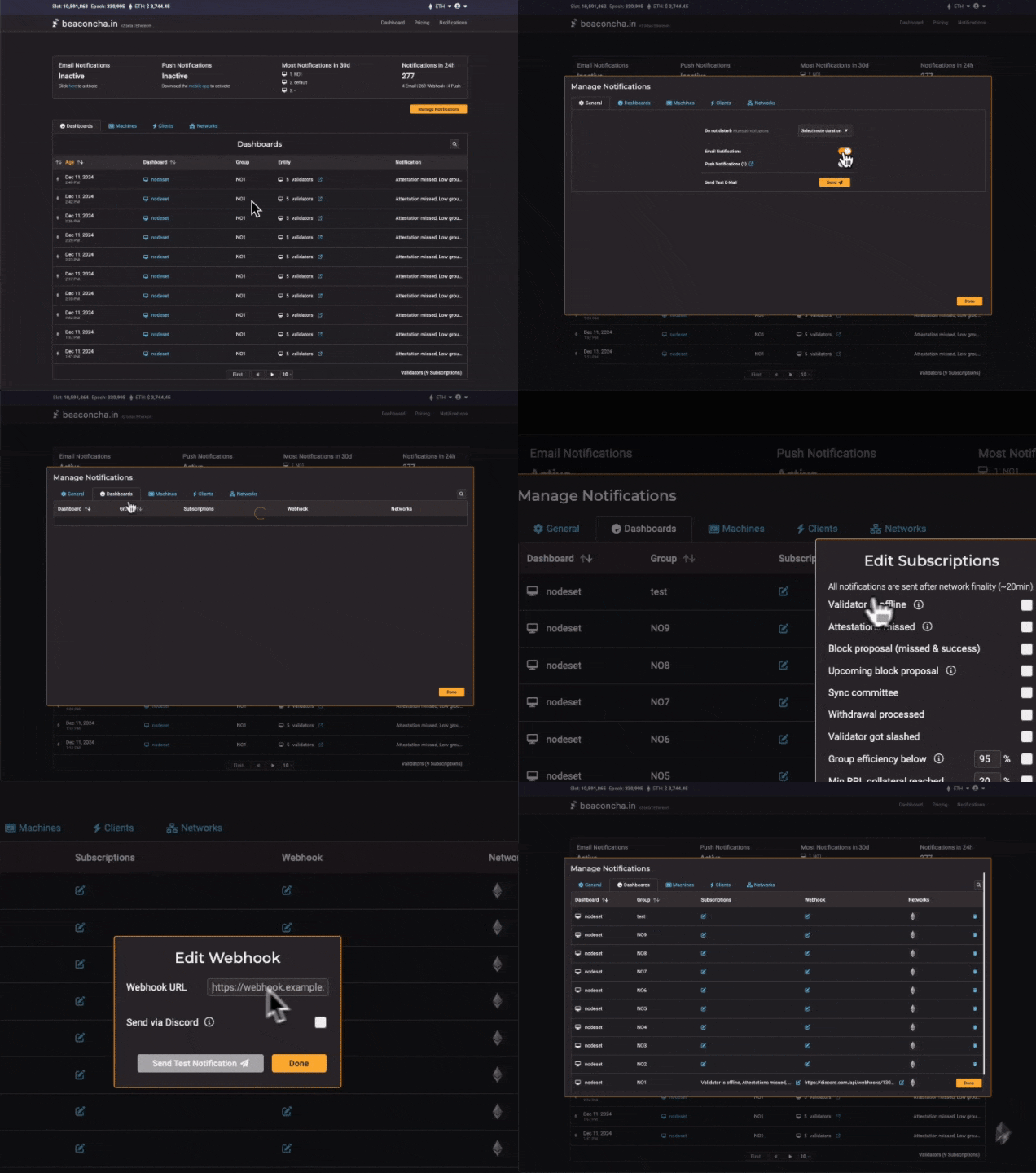
3. Click on `Manage Notifications`.
4. Ensure email and push notifications are **enabled**.
5. Send a test notification to confirm you receive notifications.
6. Go to the Dashboard tab, select the group, and edit the subscription column.
## Setting up v2 notifications via web
### Validator notifications
V2 notifications are group-based, meaning you can set validator notifications for each [group](../validator-dashboard/validator-groups) configured on the [validator dashboard](https://beaconcha.in/dashboard).
To set up notifications:
1. Make sure you have created a [validator dashboard](https://beaconcha.in/dashboard) first.
2. Go to [https://beaconcha.in/notifications#dashboards](https://beaconcha.in/notifications#dashboards).
3. Click on `Manage Notifications`.
4. Ensure email and push notifications are **enabled**.
5. Send a test notification to confirm you receive notifications.
6. Go to the Dashboard tab, select the group, and edit the subscription column.
 ### Validator notifications via webhook
1. Follow the steps in [Validator Notifications](#validator-notifications)
2. Click the Edit icon in the webhook column.
3. Add your webhook URL.
1. Check the 'Send via Discord' box if notifications should be sent to a [Discord channel](https://support.discord.com/hc/en-us/articles/228383668-Intro-to-Webhooks).
4. Send a test notification to ensure everything is working.
5. Click Save.
### Validator notifications via webhook
1. Follow the steps in [Validator Notifications](#validator-notifications)
2. Click the Edit icon in the webhook column.
3. Add your webhook URL.
1. Check the 'Send via Discord' box if notifications should be sent to a [Discord channel](https://support.discord.com/hc/en-us/articles/228383668-Intro-to-Webhooks).
4. Send a test notification to ensure everything is working.
5. Click Save.
.png?fit=max&auto=format&n=bISFwNjB_9Ym1Ov6&q=85&s=89a703de65f442ce230d5255c2a19d82) ### Client notifications
To set up notifications for EL and CL clients like Geth, Nimbus, or Erigon, go to the Clients tab.
### Client notifications
To set up notifications for EL and CL clients like Geth, Nimbus, or Erigon, go to the Clients tab.
%20(1).png?fit=max&auto=format&n=bISFwNjB_9Ym1Ov6&q=85&s=f27d5ca1923e3a736c3d370e1fb27ef4) ### Network notifications
To set up notifications for Gas prices, Rocket Pool reward round or Participation rate of the network, go to the Networks tab.
### Network notifications
To set up notifications for Gas prices, Rocket Pool reward round or Participation rate of the network, go to the Networks tab.
%20(1).png?fit=max&auto=format&n=bISFwNjB_9Ym1Ov6&q=85&s=ad90b0287f4537ff18bcc93149068201) ## Migrating from v1 notification to v2
NOTE: This method works for up to 100 validators for free users and up to 280 for premium users! Users exceeding this limit, please continue from 4.
1. Head over to [https://beaconcha.in/user/notifications](https://beaconcha.in/user/notifications)
2. Scroll down and click "View Stats"
## Migrating from v1 notification to v2
NOTE: This method works for up to 100 validators for free users and up to 280 for premium users! Users exceeding this limit, please continue from 4.
1. Head over to [https://beaconcha.in/user/notifications](https://beaconcha.in/user/notifications)
2. Scroll down and click "View Stats"
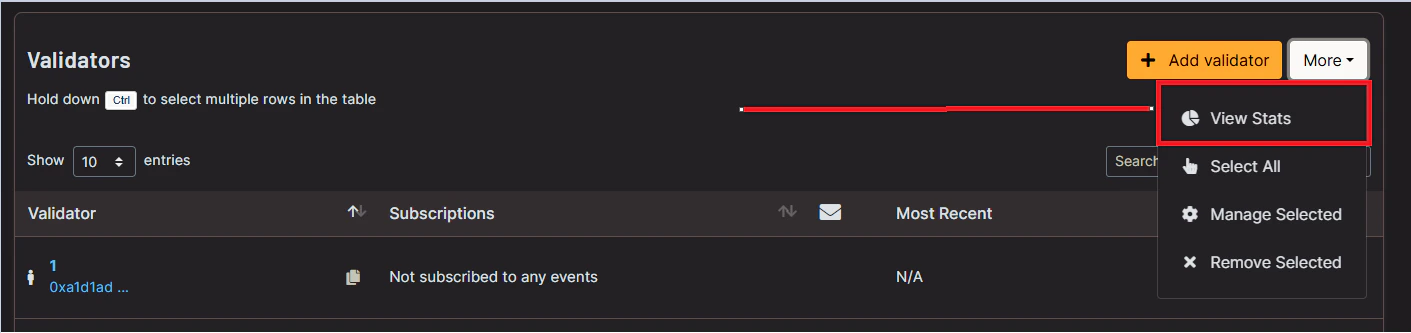 3. Copy the validator indices from the URL of the website that opens:\
e.g `1,2641,2642,2643,2645,3288,3292,3400,3401,3402,3403,3404`
3. Copy the validator indices from the URL of the website that opens:\
e.g `1,2641,2642,2643,2645,3288,3292,3400,3401,3402,3403,3404`
.png?fit=max&auto=format&n=bISFwNjB_9Ym1Ov6&q=85&s=cb0d6ad1701324e7986be8d9bba6b9f1) 4. Login on [https://beaconcha.in/login](https://beaconcha.in/login), and create a v2 dashboard here: [https://beaconcha.in/dashboard](https://beaconcha.in/dashboard)\\
5. Click on `Manage Validators`and add your validators as a comma-separated list or use other methods as described in [#bulk-adding-to-the-validator-dashboard](../validator-dashboard/manage-validators#bulk-adding-to-the-validator-dashboard "mention"):
4. Login on [https://beaconcha.in/login](https://beaconcha.in/login), and create a v2 dashboard here: [https://beaconcha.in/dashboard](https://beaconcha.in/dashboard)\\
5. Click on `Manage Validators`and add your validators as a comma-separated list or use other methods as described in [#bulk-adding-to-the-validator-dashboard](../validator-dashboard/manage-validators#bulk-adding-to-the-validator-dashboard "mention"):
.png?fit=max&auto=format&n=bISFwNjB_9Ym1Ov6&q=85&s=c93a3e5ec0502a7d847e51b771f41d83) With the dashboard successfully set up, you can configure notifications. :relaxed:
6. Go to [https://beaconcha.in/notifications#dashboards](https://beaconcha.in/notifications#dashboards).
7. Click on `Manage Notifications`.
8. Ensure email and push notifications are **enabled**.
9. Send a test notification to confirm you receive notifications.
10. Go to the Dashboard tab, select the group, and edit the subscription column.
With the dashboard successfully set up, you can configure notifications. :relaxed:
6. Go to [https://beaconcha.in/notifications#dashboards](https://beaconcha.in/notifications#dashboards).
7. Click on `Manage Notifications`.
8. Ensure email and push notifications are **enabled**.
9. Send a test notification to confirm you receive notifications.
10. Go to the Dashboard tab, select the group, and edit the subscription column.